Refund Operations
Part of Refund processing operations
Matching a refund to the original order and payment: Square
The safest starting point for a refund is the original transaction.
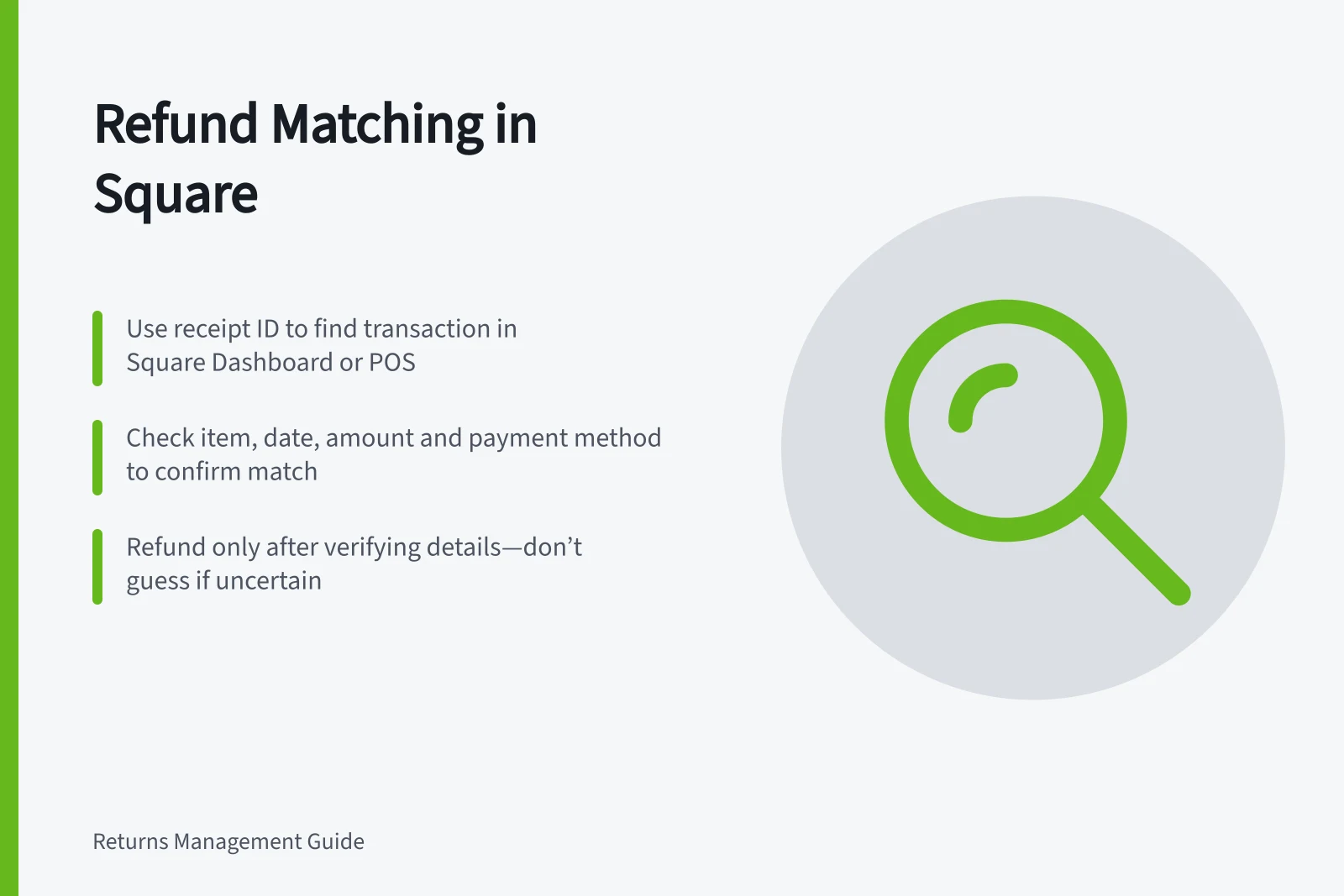
Use the receipt ID to find the Square transaction, then confirm it is the sale on the order before refunding. A name, email or amount may match several purchases, especially when a customer has reordered the same item.
Confirm the record
In Square Dashboard, open Orders & payments (or Invoices & payments or Payments) > Transactions. The Receipt ID is at the bottom of the receipt; search for it, select the transaction and view its details. Square POS also lets staff search and open individual payments.
If you do not have the receipt ID, Square Dashboard and the iOS point of sale app can search by customer name, phone number or email; the card’s last four digits; item or ticket name; item, bill, tender or ticket note; or device name. On Android, search by the card’s last four digits or receipt ID, or tap the original payment card on Square hardware.
Compare the order and receipt details with the transaction: item or ticket, purchase date, paid amount and payment method. Use the matching details together rather than relying on a name or amount alone. Keep sensitive card information within the provider’s approved interface.
If the order was paid through more than one method, confirm how Square handles the refund before submitting it. If the order and transaction details disagree, pause and verify the sale rather than guessing.
To trace a Square refund to its sale, find the original transaction by Receipt ID. Square’s refund workflow starts from the selected payment: in Dashboard, select it under Transactions and choose Issue Refund; in the point of sale app, select it under Transactions and tap Issue refund.
Square payments can be refunded within one year of the original transaction date. Confirm you have the right order before refunding, because a refund cannot be cancelled.
How to match a refund to the original order and payment in Square
- Locate the Receipt IDFound at the bottom of the original receipt; use this as the primary search term in Square Dashboard or POS.
- Search for the transactionIn Square Dashboard, go to Orders & payments > Transactions and search by Receipt ID. On iOS POS, use the same method. On Android, use last four digits of card or tap the original payment on hardware.
- Verify transaction detailsCompare item/ticket name, purchase date, paid amount, and payment method with the order. Do not rely solely on customer name or amount.
- Confirm multi-payment handlingIf multiple payment methods were used, check how Square will process the refund—partial refunds may be applied to specific tender types.
- Issue the refundFrom the selected transaction in Dashboard or POS, choose 'Issue Refund'. Refunds must be initiated within one year of the original transaction date.
Square refund processing facts
- Refund window
- Up to 1 year from original transaction date
- Refund cannot be cancelled
- Once issued, no reversal possible
- Payment method tracking
- All tender types are recorded and traceable in Square
- Sensitive data handling
- Card details remain within Square’s secure interface
Resolve ambiguity before paying
If the customer provides only a bank statement line, ask for a receipt or other permitted order detail and search Square’s transaction record. If two possible orders remain, pause and verify rather than guessing.
Check the amount to return and the destination Square will use. Give the customer refund confirmation tied to the original transaction, without promising when their bank will post it.
Before issuing a refund: key verification steps
- Have you obtained the Receipt ID?Yes / No
- Is the transaction matched to the correct order?Yes / No
- Are all payment details (date, amount, method) confirmed?Yes / No
- Was the refund initiated within 12 months?Yes / No
- Have you informed the customer about bank posting times?Yes / No